Make a New Deck
Create an empty named deck and open it in the editor.
Application guide
This walkthrough covers the complete deckbuilder workflow: creating or loading a deck, finding cards, organizing both deck zones, saving, and exporting.
Download v1.1.101 · Start
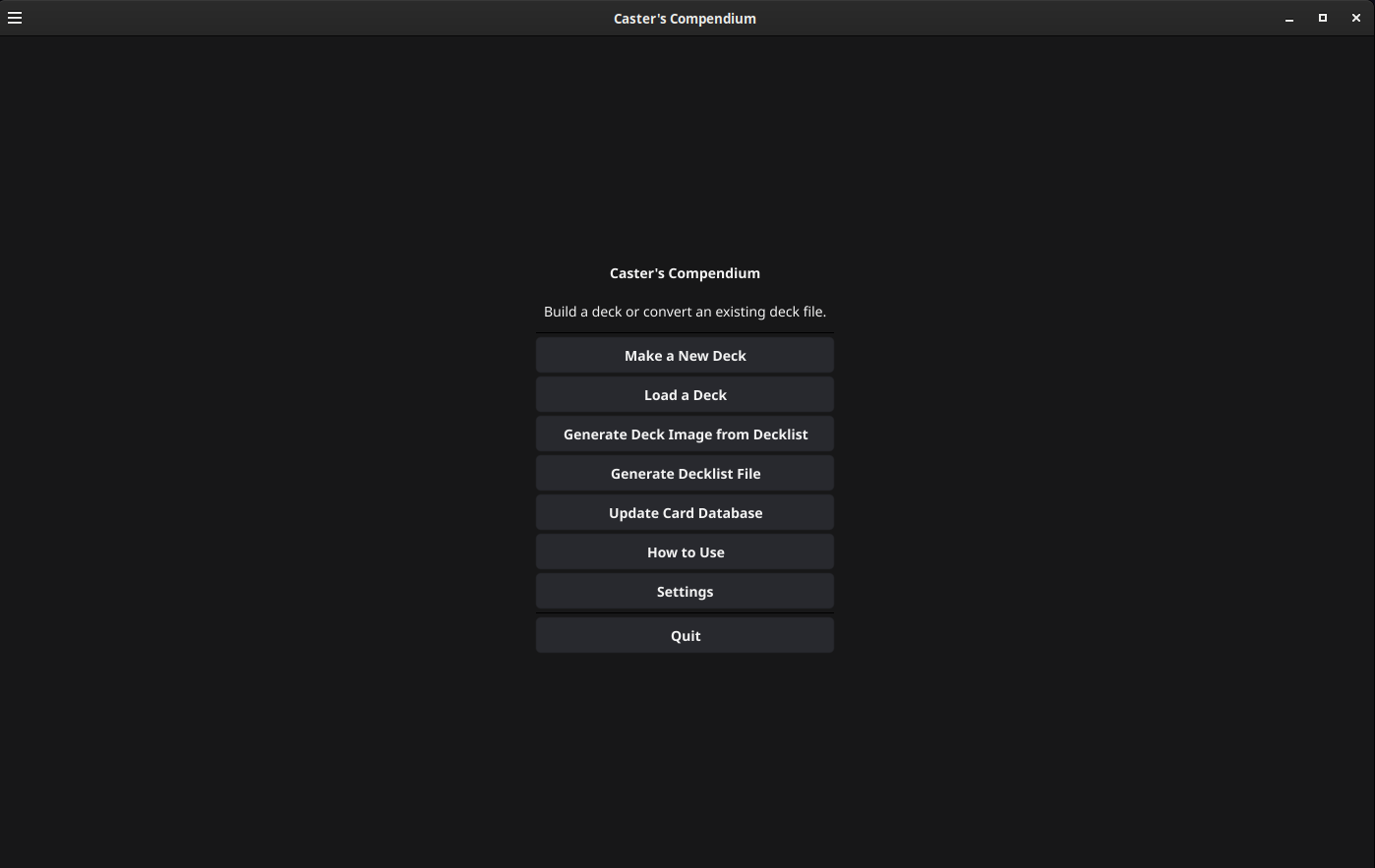
The main menu is the starting point for deck editing and file conversion. Its Changelog opens the reviewed release notes bundled with the application, so release history remains available offline.
Create an empty named deck and open it in the editor.
Open an editable JSON deck or a human-readable text decklist.
Create a Tabletop Simulator sheet directly from a text decklist.
Convert an editable JSON deck into the tournament-friendly text format.
Prototype · Play
Choose Play a Game (Prototype) from the main menu, then select one saved or official deck for each player. The application opens a private board for each local player, tracks turn and Chase state, and keeps hidden cards out of the opposing view.
During Main, the suggested-cast panel can combine recovered Caster-zone Aether sources with an explicit payment. Use Move a card… for card effects that the prototype does not automate.
02 · Search
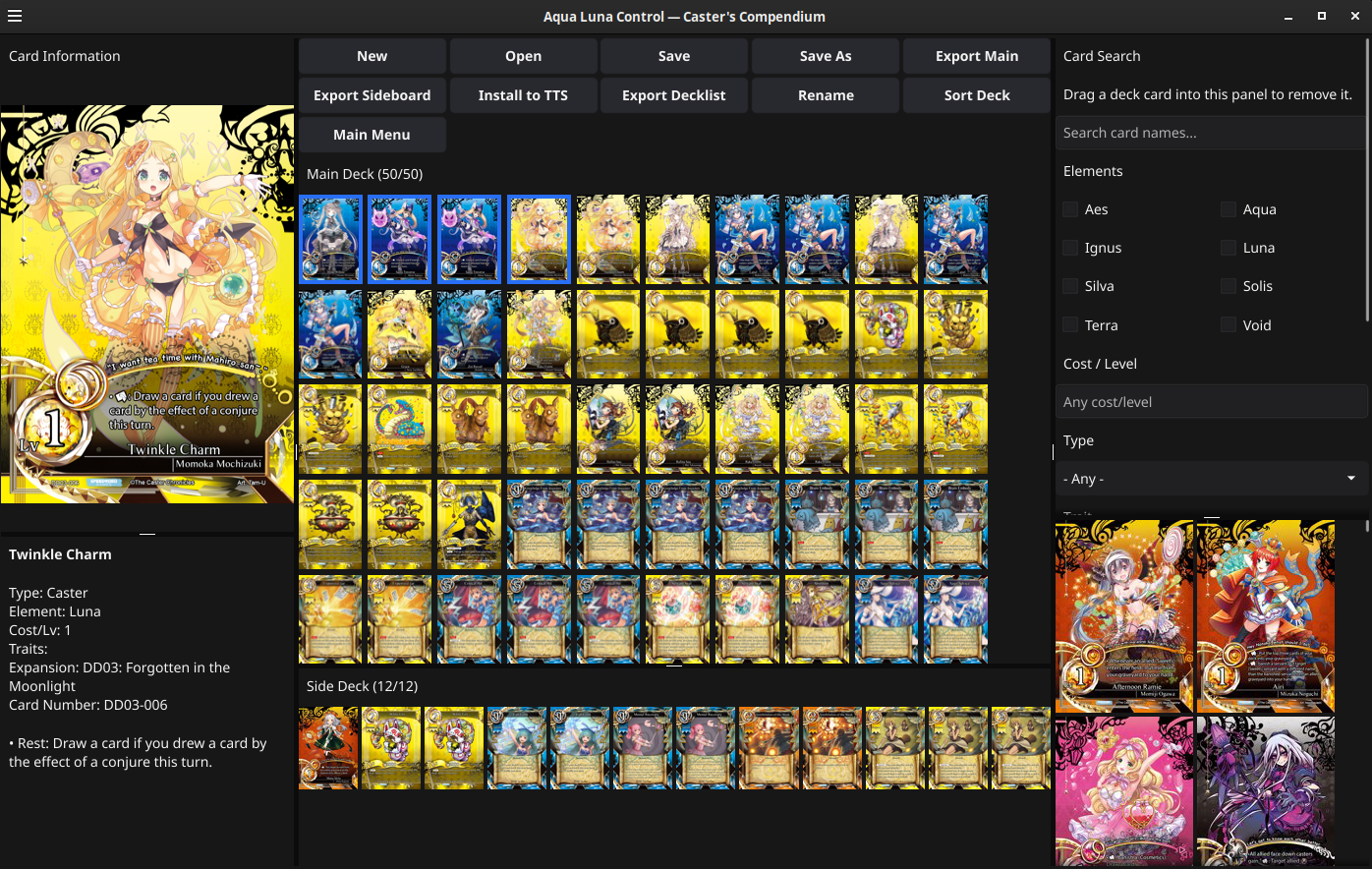
Search by name or combine element, cost, type, trait, keyword, expansion, and playtesting options. Elements are packed into four columns and the remaining fields are paired to preserve card-thumbnail space while keeping every filter visible. Fixed utility-panel dimensions keep the layout stable while the main deck and thumbnail regions receive remaining window space. Results update as filters change, and the card preview updates when you hover, click, or tap a result.
Choose Clear to reset every filter at once.
03 · Build
Mouse shortcut
Right-click a search result to add one copy to the Main Deck. Hold Shift while right-clicking to add it to the Side Deck.
Drag and drop
Drag a search result into either deck area. The insertion marker shows where the new copy will appear.
The deck model enforces the total zone sizes and the maximum of four copies across the main deck and sideboard. If a card cannot legally be added, the deck remains unchanged.
04 · Organize
Hold Control on Windows or Linux, or Command on macOS, and click individual card copies in the Main Deck or Side Deck. Selected copies receive a colored border. Starting a selection in the other deck area replaces the current selection.
Release Control or Command, then left-drag any selected card. Drop the batch at a new position in the same deck area or move it between the Main Deck and Side Deck. Selected cards keep their relative order.
Left-drag an unselected card to reorder it or move it between deck areas.
Right-click a deck card, or drag it onto the Card Search panel, to remove one copy.
Choose Sort Deck to replace custom ordering with the standard automatic order.
05 · Save and load
Save dialogs begin in Documents/Caster's Compendium/Decks. The Deck selector discovers JSON decks and compatible text decklists in that folder while Open can still load files from elsewhere.
Official entries are bundled DD01–DD04 templates published by Speedrobo Games. They work offline and open without an overwrite destination, so saving an edited template creates a personal JSON copy.
06 · Export
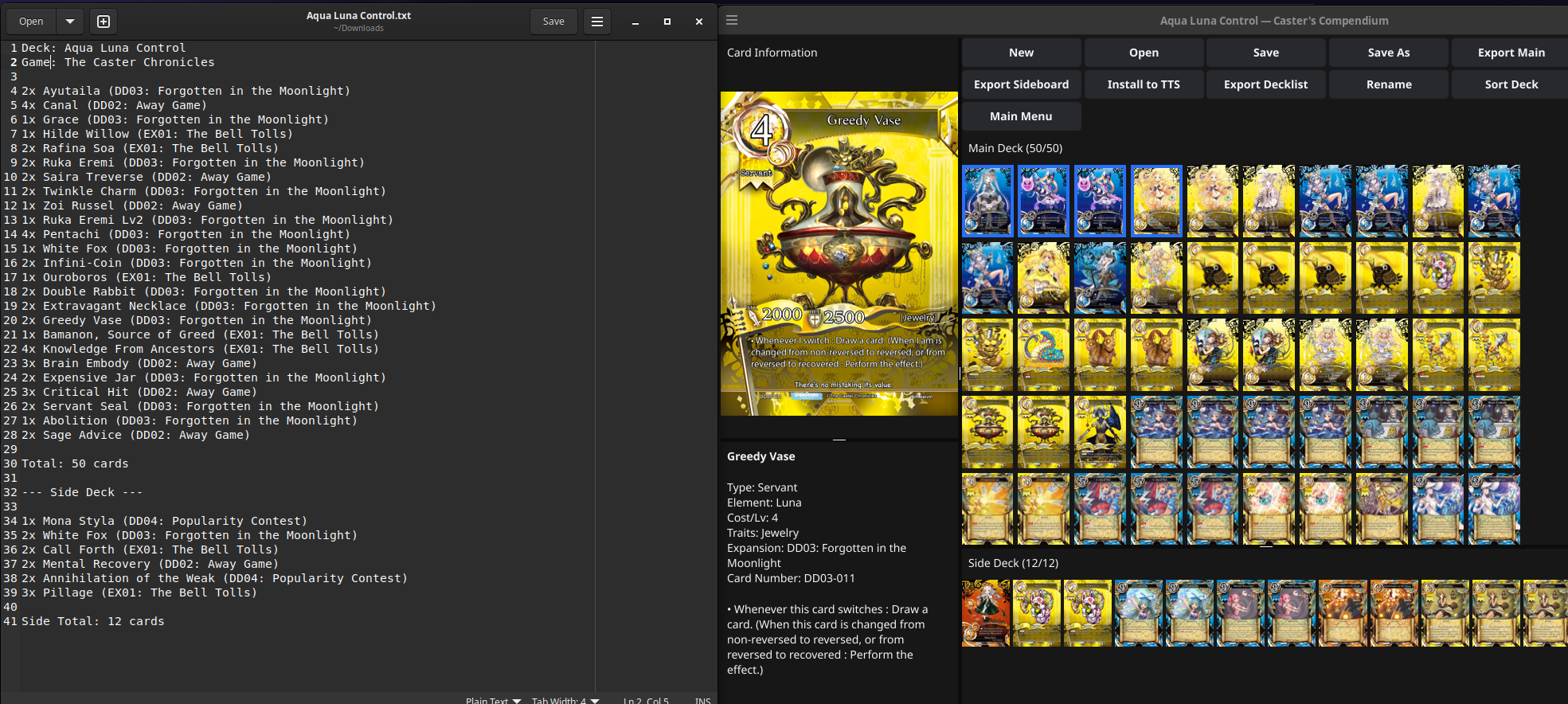
Writes the readable Speedrobo Games format with deck metadata, quantities, sets, totals, and optional sideboard contents. Main-only decklists import with an empty side deck.
Creates a Tabletop Simulator PNG sheet for the main deck, including the bundled card back.
Creates a matching Tabletop Simulator PNG sheet containing the sideboard.
Writes a portable saved object that references shared online face sheets and the MTD card back. Multiplayer participants can load the same assets without receiving files manually.
Opens the project upload service, where a permitted custom image is verified and converted into a permanent multiplayer-safe URL. Paste that URL into the deck dialog before installing it to TTS. Clear the field to restore the official card back.
When you rename a deck and install it again during the same editor session, the application removes its obsolete old-name saved object only after the renamed export succeeds.
Custom uploads are stored separately from the official card catalog. Only upload images you own or have permission to share. Uploaded URLs are public to anyone who receives them and are retained so existing multiplayer saves continue to work.
For file conversion without entering the editor, return to the main menu and use the deck-image or decklist generators.
07 · Data and appearance
At startup, the application compares its installed release marker with the publisher-authorized hosted catalog and can prompt when either data or artwork changes. Every downloaded database is checked against its published size and SHA-256 before installation. Choose Update Card Database from the main menu whenever you want to force a complete refresh.
Choose Diagnostic Information when reporting a problem. The application displays a reviewable support summary containing the release, source revision, operating system, architecture, setup state, card count, and hosted catalog endpoint. It excludes deck contents, credentials, usernames, and exact filesystem paths, and nothing is transmitted automatically.
Settings lets the application follow the operating-system theme or use a persistent Light or Dark appearance. It also offers the unobstructed default interface and the bundled Academy Rift and Caster Duel backgrounds; both choices persist between launches.
io.github.hybriduofa.casterdeckbuilder, so upgrading or moving to the new repository does not discard existing cached data.
Quick reference
Ready to build?
The download page includes direct links and installation steps for every supported platform.